
Rage Clicks: What They Are, Why They Happen, and How to Fix Them
What are rage clicks? Learn how to detect them, tell them apart from dead clicks and u-turns, and triage them with user behavior analytics and session replay.
Rage Clicks: What They Are, Why They Happen, and How to Fix Them
Picture a visitor on your checkout page. They fill in their details, press "Place order", and nothing happens. They press it again. And again. Four clicks in two seconds, then a fifth, harder. A moment later the tab is closed.
Your pageview counter recorded one visit. Your funnel recorded one drop-off. Neither recorded the moment that actually mattered. That moment has a name: a rage click.
So, what are rage clicks? A rage click is a burst of rapid, repeated clicks on the same spot, usually because the user expected a response and did not get one. They are one of the clearest signals in user behavior analytics because they capture frustration at the exact second it happens, on the exact element that caused it. This guide covers what rage clicks are, how they differ from related signals, what usually causes them, and a repeatable workflow for finding, fixing, and verifying them.
Photo: Unsplash (free to use under the Unsplash License).
TL;DR
- A rage click is several fast clicks in the same small area. It means "I expected something to happen and it did not."
- Related frustration signals are dead clicks (a click with no visible response), u-turns (arriving on a page and immediately going back) and excessive scrolling (far more scrolling than is typical). Each points to a different kind of problem.
- The most common causes are broken handlers and JavaScript errors, elements that look clickable but are not, slow responses with no feedback, and pages that are visible before they are interactive.
- A flag only tells you where to look. Confirm every pattern by watching a recording and reproducing it.
- Triage in five steps: detect, watch, reproduce, fix, verify. Prioritize by how many sessions are affected and how close the element is to revenue.
What Are Rage Clicks?
A rage click is a cluster of clicks on one element or one small area of a page in a short time. Hotjar describes them as moments when users repeatedly click in a certain area or on a specific element over a short period of time, and Microsoft Clarity flags a session when a user clicks multiple times in a clustered area in rapid succession. The exact definition differs from tool to tool, but the idea is the same: repetition, proximity, and speed.
The psychology is easy to recognize because everyone has done it. You click a button. Nothing visibly changes. You assume the click did not register, so you click again, harder and faster. The repeated clicking is not a strategy, it is an expression of the gap between what the user expected and what the interface delivered.
That is what makes the signal valuable. Most frustration is silent. A user who hits friction usually just leaves, and your analytics records a bounce or an abandoned funnel step with no explanation. A rage click is the rare case where frustration leaves a mark in the data: it tells you what the user was trying to do, where on the page, and at what moment it went wrong.
One rage click versus a pattern
Individually, a rage click may mean nothing. Someone was impatient, or their mouse double-clicked by accident. Rage clicks become meaningful in aggregate. One visitor clicking a button six times is an anecdote. Two hundred visitors doing it to the same button is a defect, and it is probably costing you conversions. Always look for repetition across sessions on the same element, page, device, or browser before you act.
How Rage Clicks Are Detected
Tools can only detect rage clicks if they record click events with enough context: when each click happened, and where or on what it landed. Detection then groups those clicks and applies a rule.
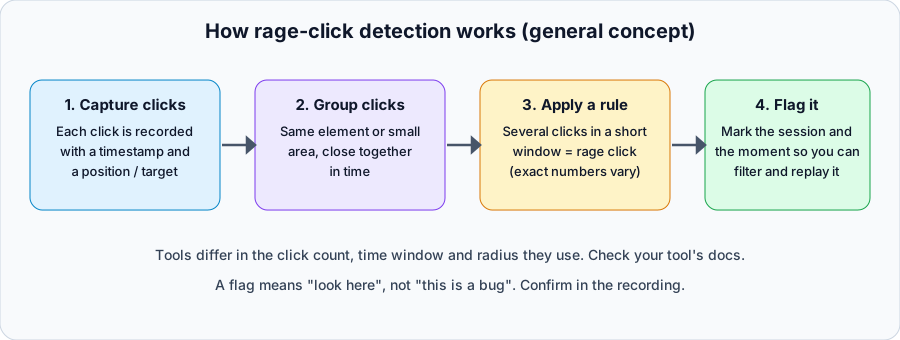
General concept of rage-click detection. Specific thresholds differ between tools.
In general terms:
- Capture. Each click is recorded with a timestamp and a target (the element, or the coordinates).
- Group. Clicks that land on the same element or within a small radius, and close together in time, are treated as one cluster.
- Apply a rule. If a cluster contains enough clicks inside a short enough window, it is classified as a rage click. The click count, the time window, and the radius are choices each vendor makes differently, so numbers quoted for one tool do not transfer to another.
- Flag. The session, and the moment within it, is marked so you can filter to it and watch what happened.
Two practical consequences follow. First, standard pageview analytics cannot find rage clicks, because it records discrete events rather than the timing and repetition of interactions. You need a tool that captures interaction-level data, which in practice means session replay or click tracking. Second, detection is a heuristic. It will occasionally flag a user who is legitimately clicking a stepper or a "next slide" arrow several times, and it will miss frustration that does not look like repeated clicking. Treat flags as leads, not verdicts.
Rage Clicks and Their Cousins: Dead Clicks, U-Turns, and Excessive Scrolling
Rage clicks are one of several frustration signals. They are most useful when you read them alongside the others, because each one points at a different kind of problem. The definitions below follow Microsoft Clarity's published documentation where noted. Other vendors use similar names with their own rules.
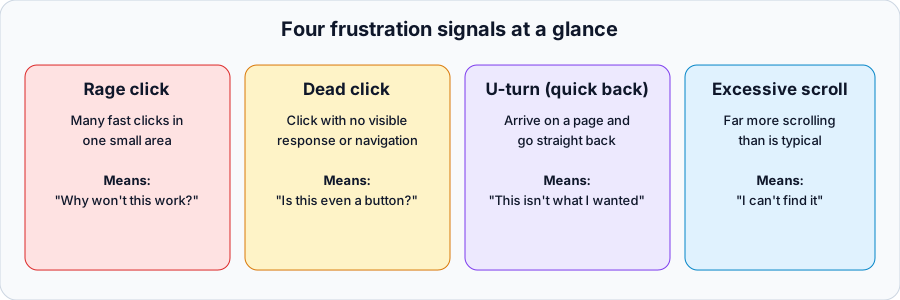
The four signals at a glance.
Dead clicks
A dead click is a click that produces no visible response. Clarity describes it as a click where the user gets no feedback in a reasonable amount of time: the visual state does not change and there is no navigation away from the page. Clarity notes that this can point to broken elements, high-latency requests, or misleading UX.
Dead clicks and rage clicks overlap but are not the same thing. A dead click can be a single click, for example someone tapping a product image that is not a link and then moving on. A rage click is a burst. Many rage clicks begin as dead clicks: the first click gets no response, so the user repeats it. If you see dead clicks on an element that is supposed to work, you have found a bug before it has even turned into rage. If you see them on something that is not supposed to be interactive, you have found an expectation your design is creating.
U-turns (quick backs)
A u-turn, which some tools call a quick back, is when someone navigates to a page and immediately goes back to the one they came from. It is not a click pattern at all, which is why it catches problems that rage clicks cannot. The most common reading is a mismatch between the link and its destination: a menu label that promised one thing and led to another, a search result or ad that did not match the landing page, or a destination so slow or broken that the user gave up on it.
Treat the definition with some care. Tools differ on how quickly the "back" must happen, and Clarity's own docs focus on rage clicks, dead clicks and excessive scrolling in the page linked above, so check how your tool defines the pattern before comparing numbers.
Thrashing
A related pattern is thrashing, where a user moves the mouse or cursor erratically, or jumps between the same few elements and pages without making progress. It is a less standardized term than rage click and not every tool detects it. When it shows up in a recording, it usually means the user is lost, hunting for something and not finding it. The fixes are the same as for the signals above: clearer labels, clearer navigation, and a closer look at what the person was trying to do.
Excessive scrolling
Clarity flags a session as having excessive scrolling when it contains more vertical scrolling than the expected average, and notes it can indicate inaccessible or frustrating UX, poor content relevance, discoverability problems, or nonstandard site interactions. Scrolling a lot is not always bad. Browsing a long catalog is expected. It becomes a problem when the user is scrolling up and down looking for something that should be easy to find, such as a price, a shipping policy, or a button. A scroll-depth heatmap helps separate healthy browsing from searching.
Which signal tells you what?
| Signal | What it looks like | What it usually means |
|---|---|---|
| Rage click | Many fast clicks, one small area | The element is broken, slow, or looks interactive when it is not |
| Dead click | A click with no visible response | The same, caught earlier; or a design cue that promises more than it does |
| U-turn / quick back | Arrive on a page, return immediately | The link or ad over-promised, or the destination failed |
| Thrashing | Erratic movement, bouncing between the same elements | The user is lost and cannot find what they want |
| Excessive scrolling | Far more scrolling than typical | Content or controls are hard to find |
Why Rage Clicks Happen: The Top Causes
When you analyze rage click patterns they tend to fall into a handful of causes. Knowing these in advance makes triage much faster, because you can usually guess the category from the first thirty seconds of a recording.
1. Something is actually broken
A button, link, or form control is supposed to do something and it is not working. A checkout button that does not submit. A "load more" button that throws a JavaScript error. A toggle that does not respond.
Replays in this category typically show the user completing other actions on the page without trouble, then hitting one specific element repeatedly. They are not confused about the page in general. This one thing is not working. Check for JavaScript errors at the moment of the first click, test across browsers and devices, and check whether an overlay, a z-index problem, or an element covering the button is intercepting clicks.
2. The element looks interactive but is not
An underlined heading. A product feature listed as if it should expand. A static image people expect to open in a lightbox. An icon that looks like a button but has no action attached.
This is an affordance problem: the element communicates "click me" through its appearance, but there is nothing behind it. Users who click once are curious. Users who click several times are frustrated. Either build the interaction users expect, or remove the visual cue. Do not simply strip the underline and move on without asking why people wanted to click it. Sometimes the pattern is telling you what to build next.
3. A slow response looks like no response
The user clicks, the response takes two or three seconds, and they click again before it arrives. This often leads to duplicate actions: two form submissions, two items in a cart, two transactions started.
This is not always a bug. Sometimes it is just a performance problem that creates the same experience as a broken button. The fix has two parts. Give immediate feedback, such as a spinner, a loading state, or a disabled button that reads "Processing...", so the user knows the click registered. And prevent duplicate submissions on the first click so an impatient second click cannot do harm.
4. The page is visible before it is interactive
Users click a button or link as soon as they see it, before the JavaScript that powers it has finished loading. The element is there but not yet functional. This is especially common on script-heavy pages that render layout quickly but attach event handlers late, and users on slow connections or older devices hit it disproportionately.
Reduce what has to run before the page is usable, defer non-critical scripts, and make sure the essential interactive elements are initialized first. Where you can, make elements visually respond immediately, even before full initialization.
5. Mobile and touch quirks
Rage-tapping on touch devices has its own causes. Touch targets that are too small, tap handlers that do not fire the way click handlers do, sticky elements covering a button, or a keyboard that hides the submit control. If the pattern shows up on mobile and not on desktop, start on a real phone, not a resized desktop browser window.
6. Browser-specific bugs
If rage clicks are concentrated in one browser or one browser version, you are probably looking at a compatibility problem: an unsupported API, a polyfill that is missing, or CSS that renders a control differently. Segment by browser before you start debugging in your own.
Symptom, Cause, Fix
Use this table as a lookup during triage.
| Symptom in the recording | Likely cause | First fix to try |
|---|---|---|
| Repeated clicks on a CTA, nothing happens, console error logged | JavaScript error in the click handler | Fix the error; add error handling and a visible failure message |
| Repeated clicks on a heading, image or icon that is not a link | False affordance | Make it interactive, or remove the visual cue |
| Clicks, a delay of a few seconds, then a duplicate action | Slow response, no feedback | Add a loading state; disable the control after the first click; fix the slow call |
| Clicks right after page load, then it works later | Page visible before scripts are ready | Defer non-critical scripts; initialize key handlers first |
| Rage taps on mobile only | Small touch target or tap handling | Enlarge the target; test on real devices |
| One browser only | Compatibility bug | Reproduce in that browser; check unsupported APIs |
| Clicks on a button that looks disabled but is not | CSS state glitch | Fix the style so the visual state matches the real state |
| Clicks followed by exit | User gave up | Highest priority; the element is causing abandonment |
| Clicks followed by success elsewhere | User found a workaround | Medium priority; fix, but users are recovering |
The Rage-Click Triage Workflow
Finding rage clicks is the easy part. The value comes from a consistent process for turning flags into fixes.
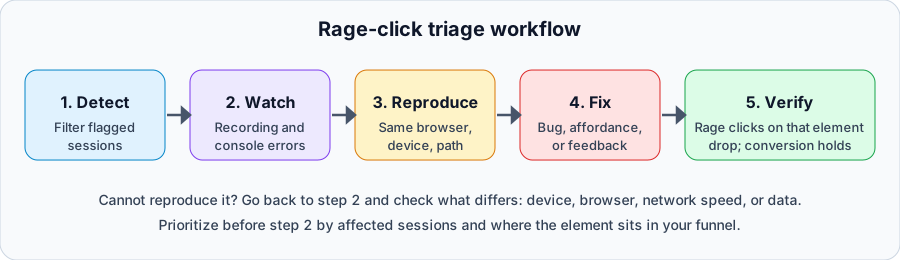
Detect, watch, reproduce, fix, verify.
Step 1: Detect
Filter your session list to sessions flagged with rage clicks, or open an aggregate view if your tool has one. Group by page and element so you can see which patterns repeat across sessions. Note the count, the page, and any obvious concentration by device or browser. You are looking for repetition. Sort out the one-off sessions at the bottom of the list for later.
Step 2: Watch
Open a recording from the pattern you want to understand. A systematic way to read it:
- Watch the thirty seconds before. What was the user doing? Filling in a form? Reading pricing? Coming from a specific campaign? Context makes the click interpretable.
- Watch what happens after. Did they find a workaround, leave immediately, contact support, or keep trying other things?
- Look at the element. Is it a button, a link, an image, a form field? Does it look disabled or inactive due to a styling issue?
- Check for errors. An error logged at the moment of the first click often explains why the later clicks did nothing.
Watch several recordings from the same pattern, not just one. Three or four are usually enough to tell whether the cause is consistent.
Step 3: Reproduce
Try to make it happen yourself with the same browser, device type, viewport, and path through the site, including the account state or cart contents the user had. If you can reproduce it, you can fix it and later prove it is fixed. If you cannot, go back to step two and look for what differs: a slow network, an older browser, a particular form value, a logged-in state, or a third-party script that failed to load.
Step 4: Fix
Match the fix to the cause: repair the bug, change the affordance, or add feedback and prevent double submits. Keep the change small and specific to the element, so that when the numbers move you know what moved them.
Step 5: Verify
After release, check that rage clicks on that element dropped, and that the funnel step it sits in did not get worse. Do not rely on the absence of flags alone, because a fix that moves the problem elsewhere (for example, replacing rage clicks with silent abandonment) can look like success. Compare the same segment, such as the same page and the same device type, before and after, and watch a few fresh recordings to confirm the experience is what you intended.
Prioritizing Which Rage Clicks to Fix
You will usually find more rage-click patterns than you can fix this week. Rank them rather than working top to bottom.
Affected sessions. How many sessions contain this pattern, and as a share of the sessions that touch that page? A pattern in four hundred sessions deserves attention before one in five. Use proportions, not just raw counts, so that high-traffic pages do not crowd out everything else.
Proximity to revenue. A rage click on "Place order" costs far more than a rage click on a secondary settings toggle. Use your funnel analysis to see which steps carry the most value, then weigh rage-click patterns by where they sit.
Who is affected. New visitors exploring are different from paying customers trying to use a core feature. The second group is usually more urgent, and also easier to lose.
What happens next. Do sessions with this pattern end in an exit? If people leave after rage clicking, the element is directly causing abandonment. If they recover, it is a cost but not a catastrophe.
Effort to fix. A missing loading state is an hour's work. A rebuilt checkout is not. When two patterns are close in impact, ship the cheap fix first.
A simple scoring approach works well: estimate the affected sessions, multiply by how valuable that point in the journey is, then divide by effort. You do not need precision. You need an ordering you can defend.
For a wider framework on turning behavioral findings into conversion gains, see our guide to conversion rate optimization with analytics.
Rage Clicks as a Product Signal
Not every rage click is a bug. Some are expectations. When users repeatedly click something non-interactive across many sessions, they are telling you what they think your product should do.
Users who keep clicking plan names on a pricing page may want a way to compare features in detail. Users who click an author name on a blog post may expect to see more posts by that person. Hypothetical examples like these are worth checking against your own data: the patterns that repeat across different users in different sessions are the ones that reflect a consistent expectation your product is not meeting. Some of them are, in effect, unsolicited feature requests expressed through frustration.
Rage Clicks in Seentics
Seentics is an open-source, privacy-first analytics platform. Rage clicks are captured automatically once the tracker is installed, and session replays, recorded with rrweb, include rage-click and JavaScript error detection. In practice that means the loop above is available in one place: find the sessions where frustration was flagged, watch the replay, and look for the error that explains it. Seentics also offers click and scroll-depth heatmaps and funnels with drop-off rates, which help you see where rage clicks sit in the journey and how much conversion is at stake. See the session replay guide for more on how replays work.
Seentics is cookie-free and does not use fingerprinting. As with any session recording tool, review what you capture and mask sensitive fields.
You can explore it with the live demo or self-host it from GitHub.
Photo: Unsplash (free to use under the Unsplash License). Illustrative of an analytics dashboard, not Seentics.
Frequently Asked Questions
What are rage clicks?
Rage clicks are rapid, repeated clicks on the same element or small area of a page, usually because the user expected something to happen and nothing did. They are a frustration signal captured in user behavior analytics, and they are most useful when you can watch the session in which they happened.
How many clicks count as a rage click?
It depends on the tool. Each vendor picks its own click count, time window, and radius, so there is no universal number. Microsoft Clarity, for example, describes multiple clicks in a clustered area in rapid succession rather than one universal count. Read the documentation for whichever tool you use, and judge borderline flags by watching the recording.
What is the difference between a rage click and a dead click?
A dead click is a click that gets no visible response. A rage click is a burst of repeated clicks. They often go together: a dead click is frequently the first click of what becomes a rage click. A single dead click on an element that is supposed to work still points to a bug, even without the repetition.
Do rage clicks always mean something is broken?
No. They can mean a bug, a slow response, a false affordance, or just an expectation your product does not yet meet. Occasionally they are legitimate, such as someone tapping a stepper repeatedly. That is why the workflow includes watching the recording and reproducing the issue before changing anything.
Can I find rage clicks without session replay?
Not reliably. Rage clicks depend on the timing and repetition of individual interactions, which standard pageview analytics does not record. You need click-level capture, and in practice a recording of the session is what lets you understand why it happened.
How should I measure whether a fix worked?
Compare rage-click frequency on the same element and page, for the same device type, before and after the change. Then check that the conversion step it sits in held steady or improved, and watch some new recordings. A drop in flags without a change in outcomes can mean the problem simply moved.
Conclusion
Rage clicks are user frustration made visible: a moment where what the user wanted and what actually happened were far enough apart to produce a measurable behavior. Read them together with dead clicks, u-turns, and excessive scrolling and you get a map of where your interface fails the people using it.
The teams that benefit are the ones that make this routine. Detect the pattern, watch the recordings, reproduce the problem, fix the cause, and verify the result. Start this week: filter your recordings for rage-click sessions and watch ten of them. At least one will show you a fixable problem you did not know you had.